Origin
My blog's icons originally referenced someone else's external vector icon JavaScript file. Yesterday, during a boring class, I started worrying: what if the external link goes down someday and all the icons disappear? So I decided to localize these icons by adding them to my own Alibaba Vector Icon project.
Process
At first, I was completely lost facing the messy JavaScript file. After downloading and formatting it, I still couldn't find any useful information.
Later, I noticed a JSON configuration file in the online link section of my Alibaba Vector Icon project dashboard. This file contains detailed information about the vector icons. I realized that by changing the requested .js file extension to .json in the external URL, I could obtain the other party's vector icon configuration file.
For example: at.alicdn.com/t/font2489793cwzf3desb3s.js
Changing it to JSON gives: at.alicdn.com/t/font2489793cwzf3desb3s.json
After obtaining the configuration file, I noticed a field called icon_id, which I assumed was the unique identifier for each icon. I thought I could use this ID to locate specific icons. However, the Alibaba Vector Icon Library only supports searching by name. With countless icons having duplicate names, finding a specific one felt like searching for a needle in a haystack.
I first searched online but found no API or documentation about searching icons by ID. I also asked several experts but got no useful answers.
Later, while inspecting the console, I tried searching for icon_id and discovered that each icon has a class referencing its corresponding ID style. I attempted to modify this ID, but nothing happened.
It was almost time to leave school, and after an entire afternoon of fruitless effort, I was about to give up and close the tab when suddenly an idea struck me: "Since adding icons to favorites is triggered by a click event, could the icon_id be carried within this event?" Sure enough, I found it!
Steps
- First, open the configuration file of the icon you want to add.
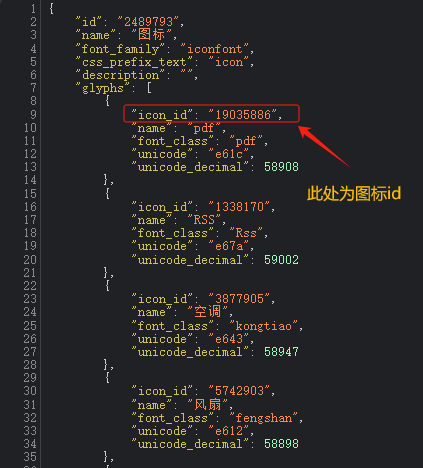
1700925803155.png
- Get the ID of any icon from the vector icon library.
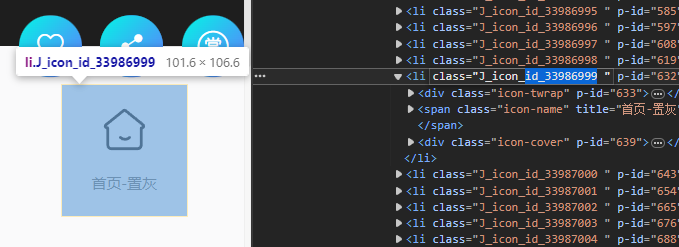
1700925629657.png
- Search to find the event handler for the download button click.
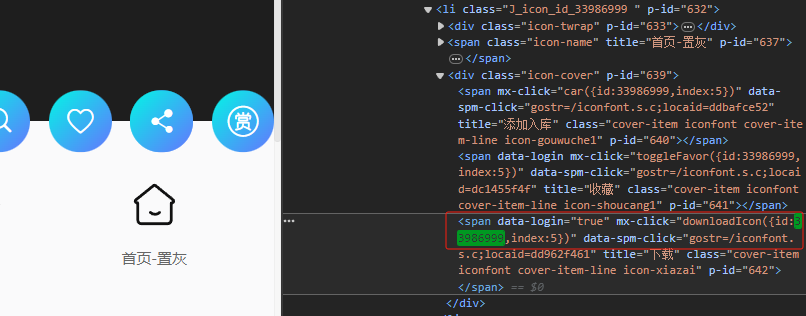
1700925963223.png
- Replace the current ID with the ID of the icon you want to add to your library.
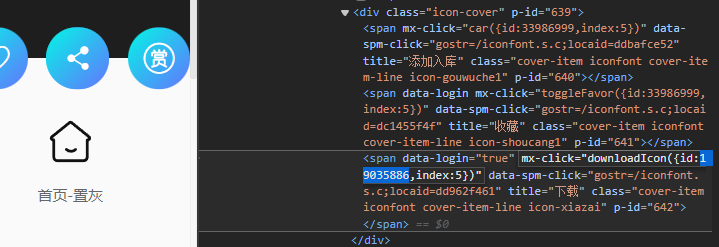
1700926096742.png
Then click download.

1700927153717.png
You'll find that the original icon has been replaced with the one you wanted.
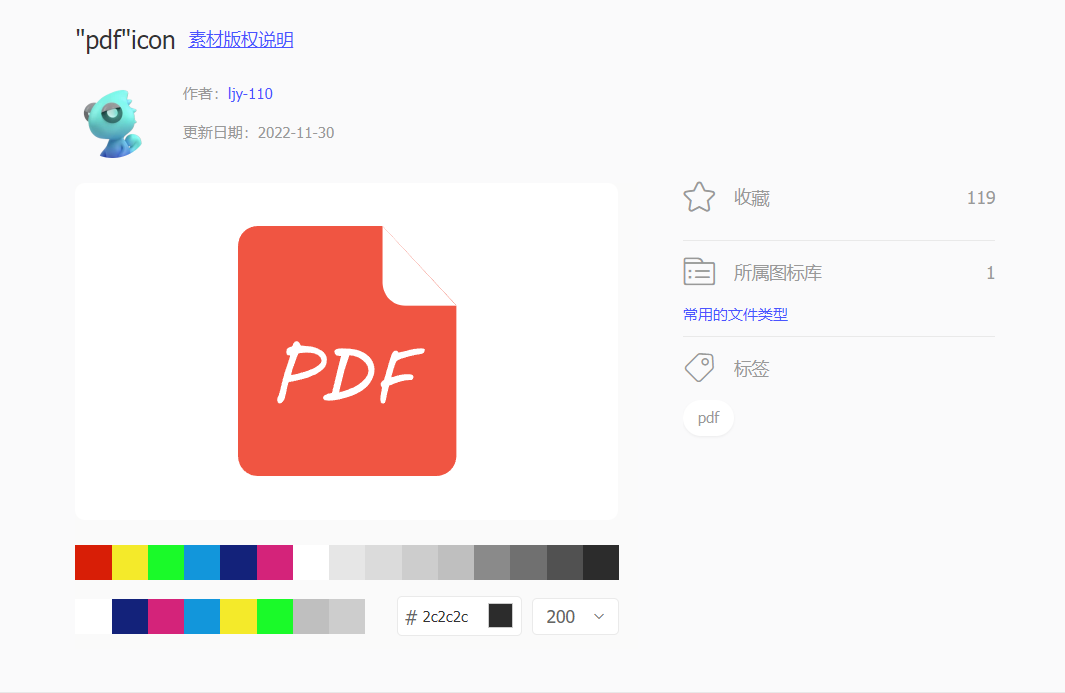
1700927173210.png
Click 'Add to Favorites', then go to your favorites and add it to your project.
Congratulations! You've successfully added your desired icon to your project.
This might be the most clumsy method, but it's still practical.