Because of my school environment, the internet connection isn't very stable. Downloading certain large games (not really) usually takes a long time, so I often leave downloads running overnight while I sleep. However, I don't want my computer to remain powered on after the download finishes, so I looked into setting up a scheduled shutdown. I'm using Windows 11 Pro 22H2, but other versions should work similarly.
The script code is as follows:
shutdown -s -t 6960
This means the system will automatically shut down after 116 minutes. Divide the value by 60 to get the number of minutes you need.
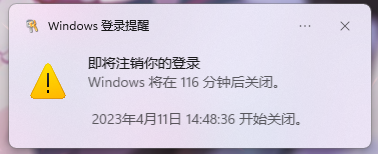
2257274439.png
If you want to cancel the scheduled shutdown, use the following command:
shutdown -a
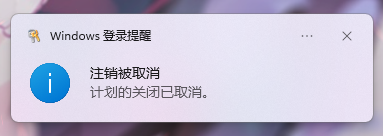
3981060826.png
Method 1
Create a new file on the desktop. By default, you can choose a text document, then enter the code shown above. Click "File" in the top-left corner, select "Save As", change the file type from .txt to .bat, and save it. Then double-click the .bat file on your desktop to run it.
Method 2
If you find that inconvenient, you can also press the Windows key + R to open the Run dialog, then directly enter the command shown above.
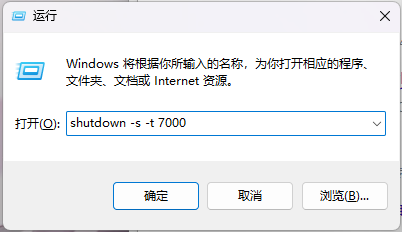
150811913.png
I use this frequently, so I prefer Method 1—just place the file on the desktop and double-click it whenever you need to run it.