[!TIP] It is strongly recommended to back up your website before performing the upgrade.
Preface
I've been at home on vacation with nothing to do, and occasionally remembered that there are still many parts of my blog that haven't been optimized, so I kept putting it off again (procrastination + laziness).
Today, being particularly bored, I forced myself to open my blog's server and saw countless windows in the code editor.
Yes, I've forgotten again where I last made changes. Since learning to use Git a bit, I've found it increasingly useful. Checking the last branch synchronization record,
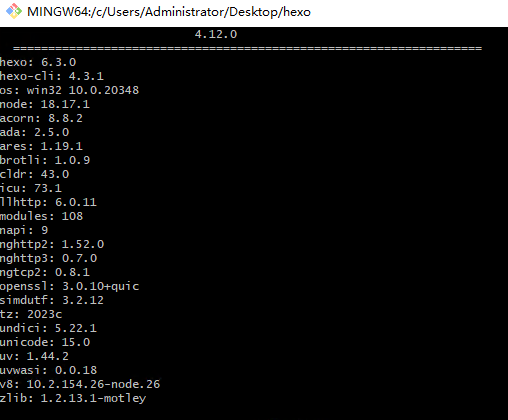
I realized I didn't like the "Instant Thoughts" page anymore, so I removed it, synchronized the updates to the equipment page and the top banner, and upgraded the theme version to 4.12.0. Later, I discovered that the Hexo version had also been updated from 6.3.0 to 7.0. This is my first time upgrading the blog system version. I searched online for tutorials but found they all seemed identical and didn't apply to my situation (maybe I was using them incorrectly).
Fortunately, I didn't run into many issues, and my dependencies didn't break. Below, I'll share my process.
Getting Started
First, navigate to the root directory of your Hexo project.
1704718763.png
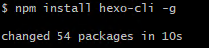
Enter the following commands in sequence to update Hexo:
1704719123.png

1704719352.png
This will install the latest version of Hexo.
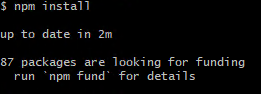
You'll also need to update dependencies. In your Hexo root directory, enter the following command:
1704719606.png
This will update all your dependency items.
Finally
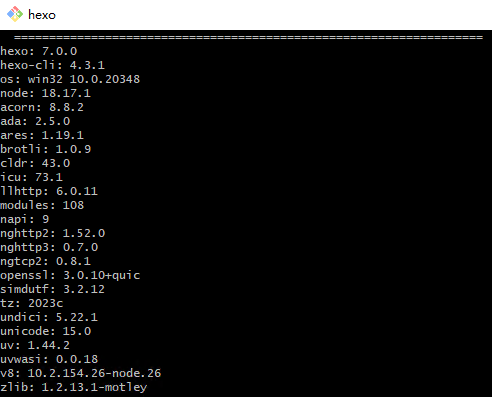
You can enter the following command to check your Hexo version:
1704719789.png
If the displayed Hexo version is 7.0, then congratulations—you've successfully upgraded to the latest Hexo version.