Introduction
A few days ago, I suddenly got the idea to self-host a chat server. As early as 2022, a friend had written an online chat room using PHP. However, since it was so long ago, I didn't back up the code. After searching several open-source projects online without finding a suitable one, I eventually chose VoceChat among DuckChat, Synology Chat (the official Synology chat suite), and VoceChat—mainly because of its simplicity and ease of use.
System Selection
DuckChat
I first heard about this name in the comment section of a Bilibili blogger. I then did some research and found its installation interface quite appealing to my aesthetic. It also has clients across multiple platforms with a relatively complete ecosystem. However, for unknown reasons, the project stopped maintenance four years ago (last GitHub commit), and both its official website and documentation are currently inaccessible. Therefore, I abandoned the idea of deploying this project.
Synology Chat
This is the official chat suite provided by Synology. For some reason, it has been removed from the Chinese market (we can roughly guess why). You can manually download and install it by switching the Synology download center to Hong Kong and selecting according to your Synology model. 
1723131343000.png
Since I don't have an Android device for testing, iOS users need to switch to a foreign region account to download and use it. The functionality is quite comprehensive, but personally, I'm not a big fan of the interface. If you only have a Synology NAS, I'd highly recommend installing and using it.
VoceChat
After abandoning the first two options, I偶然ly came across this application. Initially, I didn't have high expectations, but after using it for about a week, I must say this mere 15MB program gave me many pleasant surprises. Its ecosystem is also relatively complete, meeting all my current usage scenarios. Moreover, I can even embed the VoceChat widget SDK into a webpage to achieve a function similar to "online customer service." 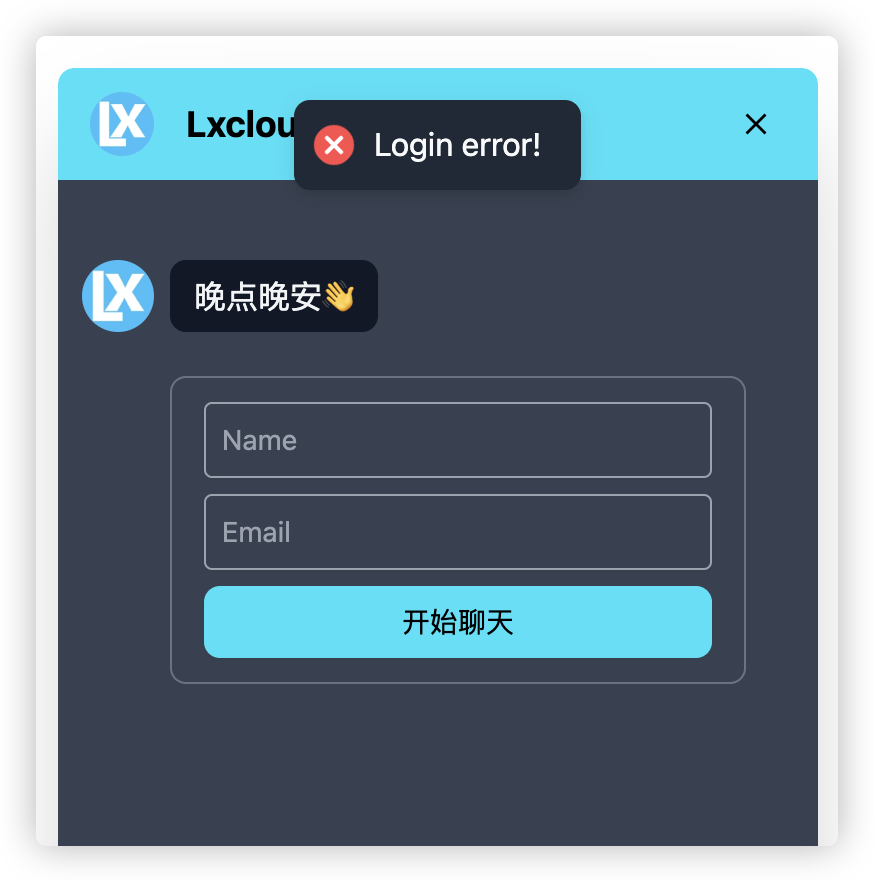
1723132233119.png
Deployment Tutorial
Due to personal preference, I prefer writing orchestration files over using command lines with Docker, as it makes subsequent backups quicker and modifications easier.
Step One
Create a new folder under your Synology Docker container directory—name it whatever you like, as long as you know its purpose.

1723132882323.png
Step Two
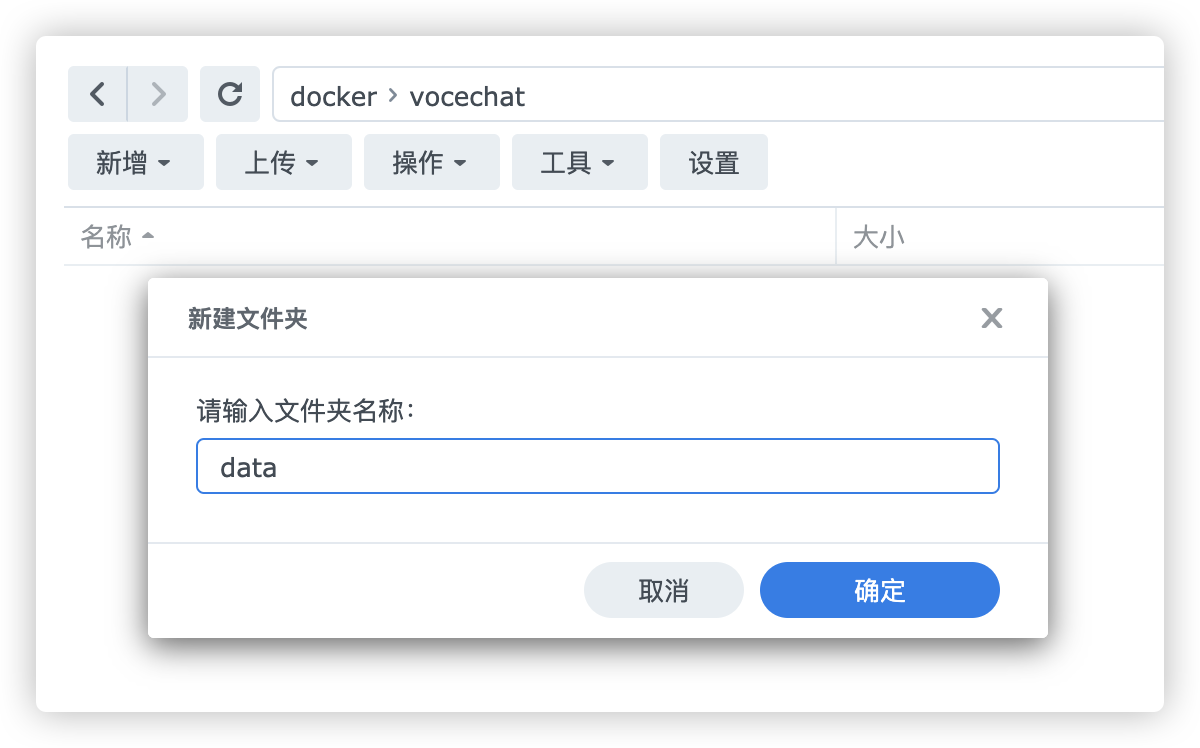
After creation, click into the directory and create another folder named 'data' to map container data to the local system later.
1723133321970.png
Step Three
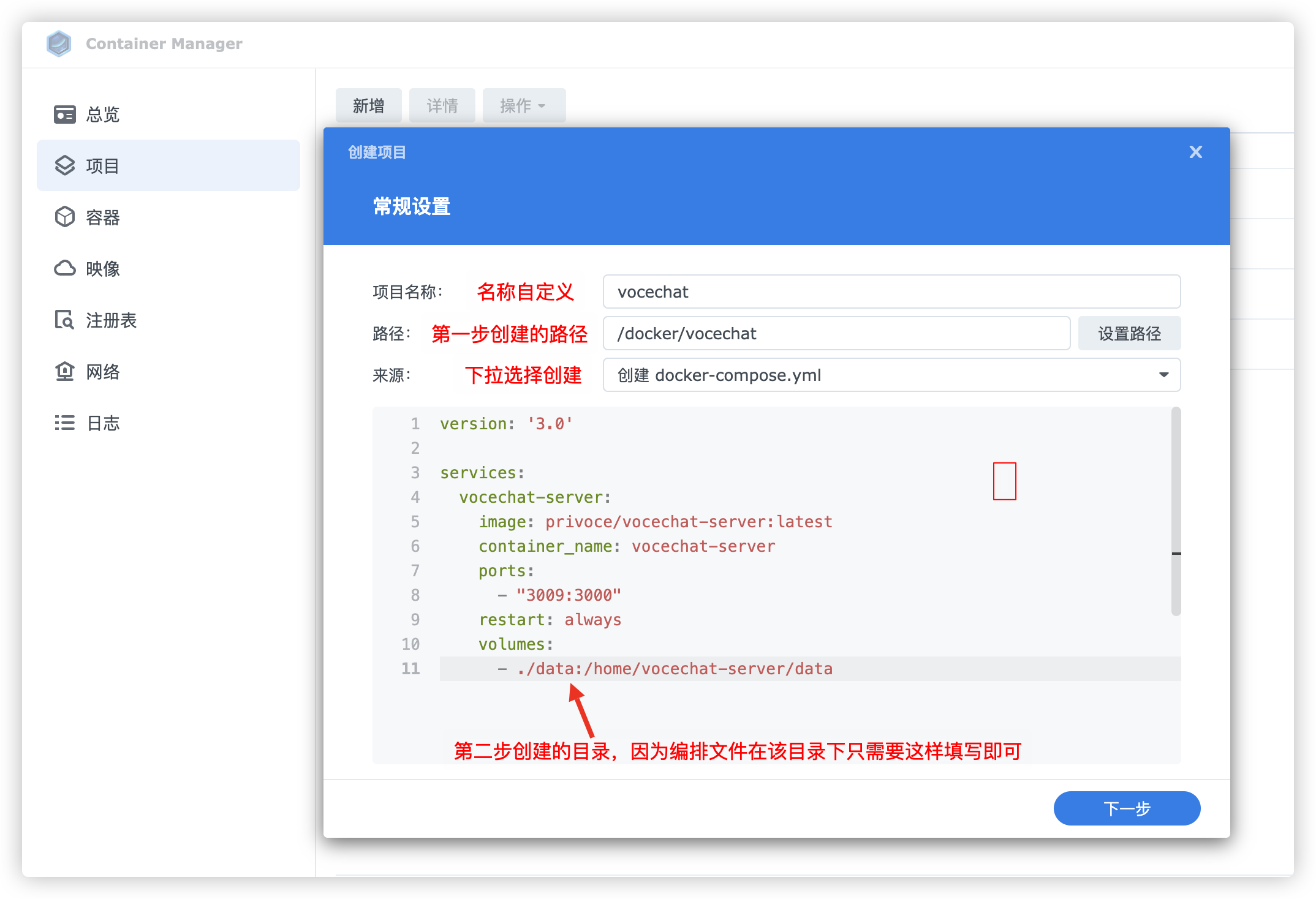
Create an orchestration project. Follow the configuration shown in my image, and here's my setup:
1723133994096.png
After filling in the configuration, click next and wait for the image to be pulled successfully.
Initialization
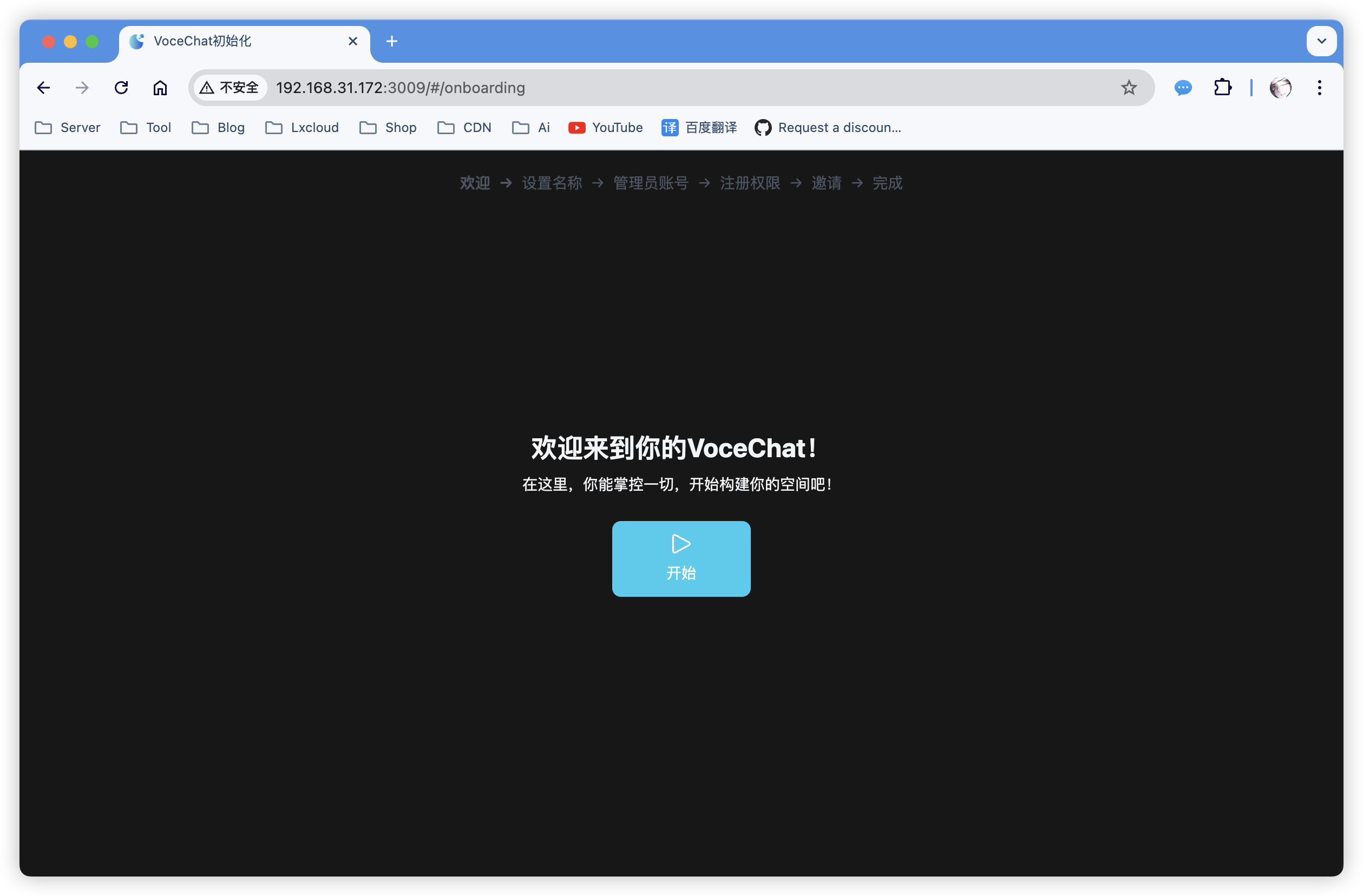
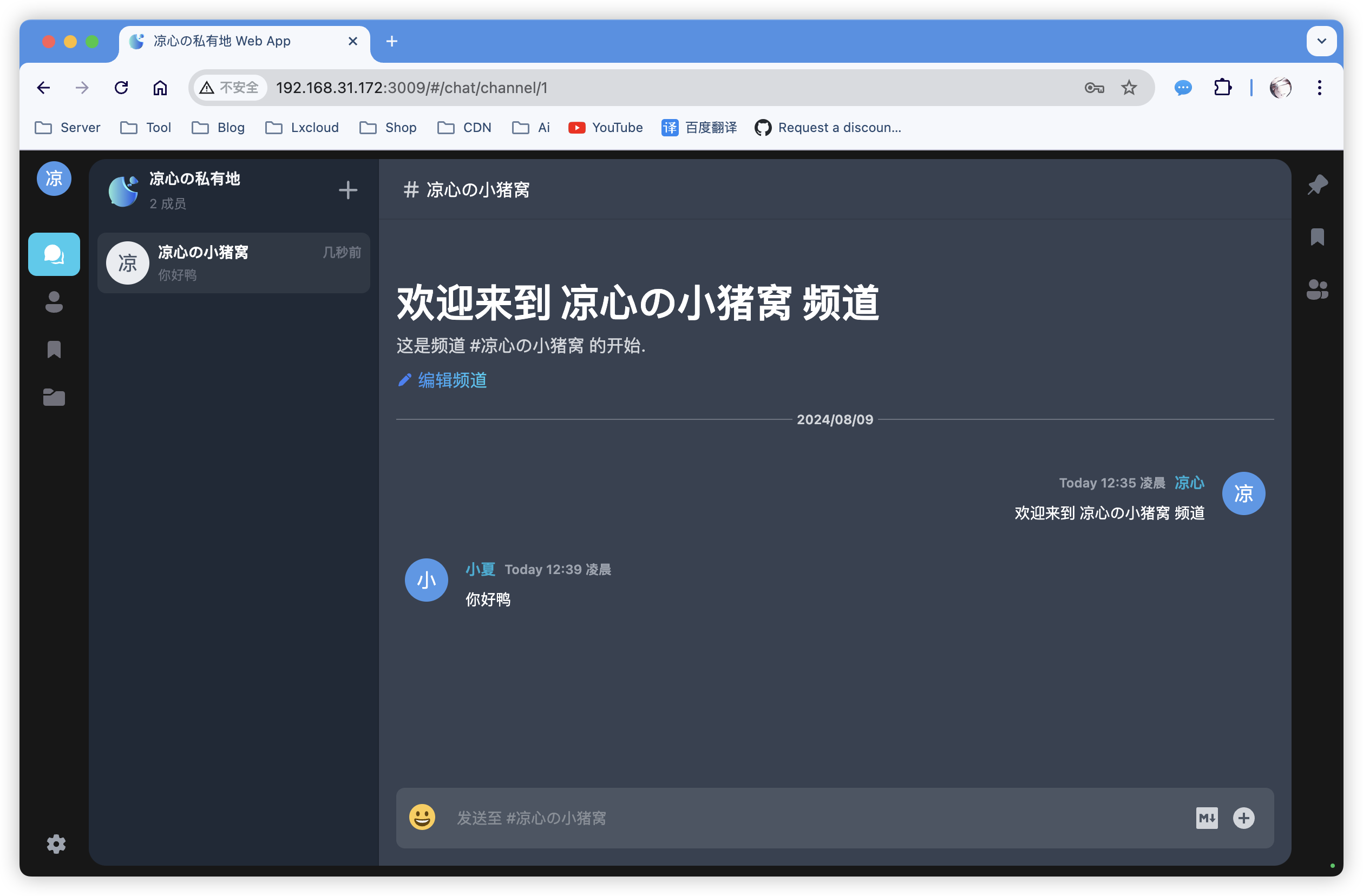
After deployment, access your IP:3009 via browser to initialize the application.
1723134308611.png
Complete the initialization according to your actual situation and then you're ready to use it.
1723135357920.png
Some Usage Suggestions
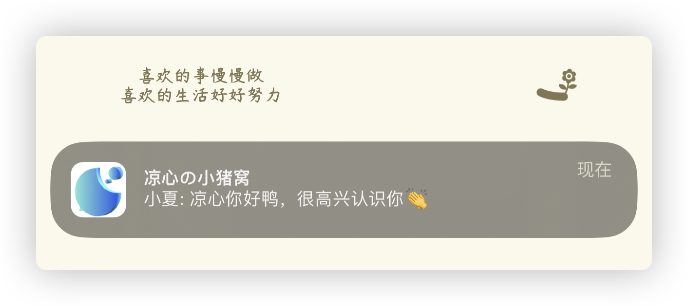
- Currently, VoceChat's message push notifications rely on Google-related services. Due to well-known reasons, please ensure your Synology network can access Google via soft router or side routing to guarantee receipt of push notifications.
1723136175755.png
- Depending on personal usage habits, I personally suggest changing the chat layout to right-aligned in the overview settings, which better aligns with domestic communication habits.

1723136450055.png
Final Thoughts
VoceChat's capabilities go far beyond what's introduced in this article. You can experiment further after deployment. The official documentation is also very detailed. The above tutorial applies not only to Synology; orchestration files can be deployed and modified according to your actual needs.