Lately, I'm not sure why, but my desire to share has been gradually decreasing. I've stopped updating on all platforms, occasionally going crazy on social media. Recently, I acquired several new devices and programs, and I wanted to write about the tinkering process. I'd create a new file, think about it for a while, and then decide against it. Part of the reason might be that I recently left school and am feeling a bit anxious. Another part is that I've been quite busy lately with various projects, leaving me neither the mood nor the time to sit down and write a proper article.
Preface
When it comes to Synology, most people are familiar—it's the big daddy among NAS devices. Last week, I completed the so-called "trinity of middle-aged internet users" (not really), ahead of schedule. My first impression of white Synology is that it sells systems and ecosystems, offering high prices with low specs (is this allowed to say?). So I chose to build my own. I found a helpful guy online (he's really nice and even offered remote assistance when I had questions; let me know if you need his contact info) who helped me assemble a black Synology with an N100 6-bay model. I must say, the N2 chassis looks really sleek. Enough talk, here are some pictures!
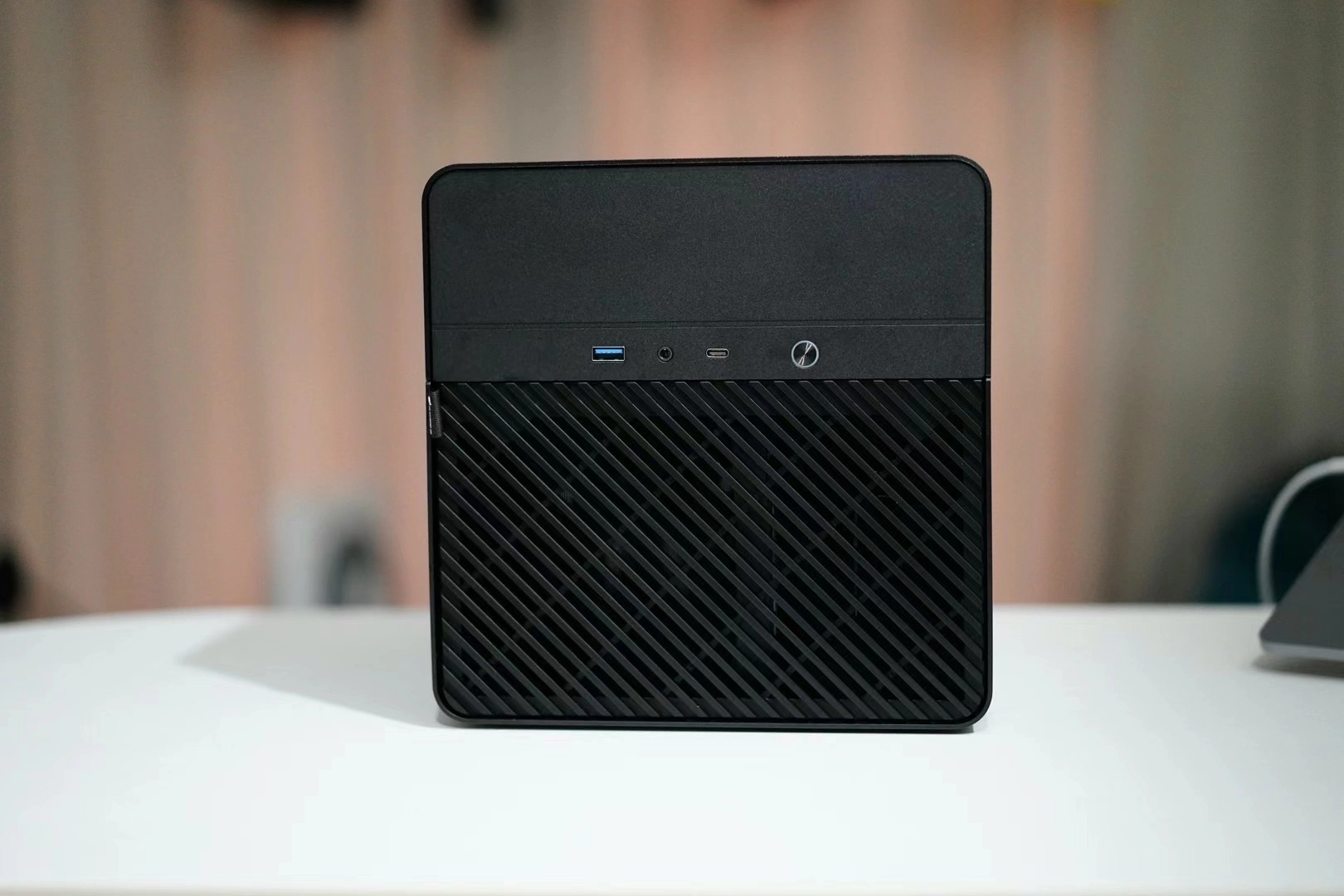
1720876974.webp
I also installed a spare M.2 drive I had lying around at home, and bought a 4TB hard drive. I plan to reward myself with another drive each month until it's fully loaded. Currently, I mainly use it to back up my camera photos. I have to say, Synology's built-in Photo Station is really great.
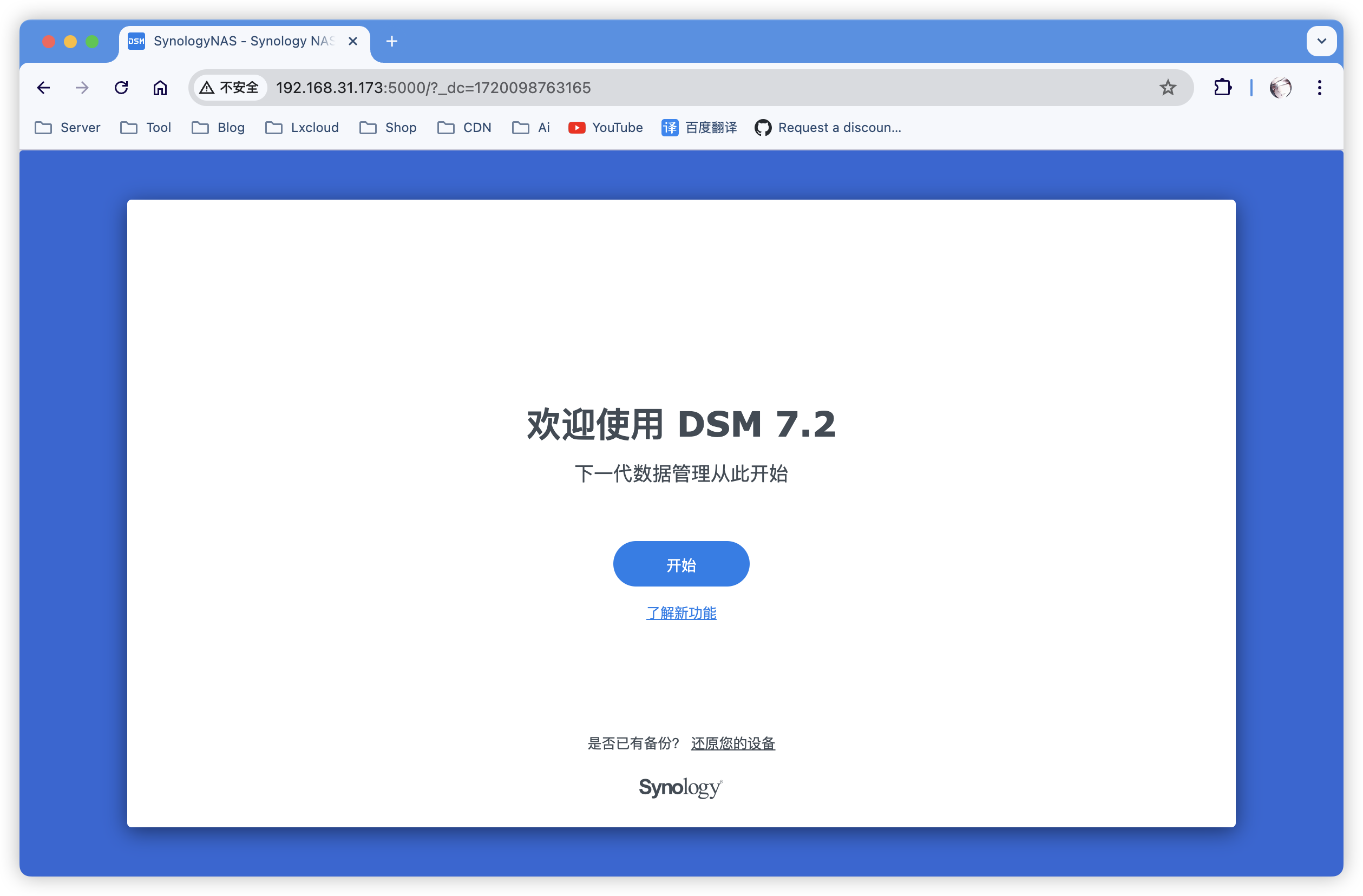
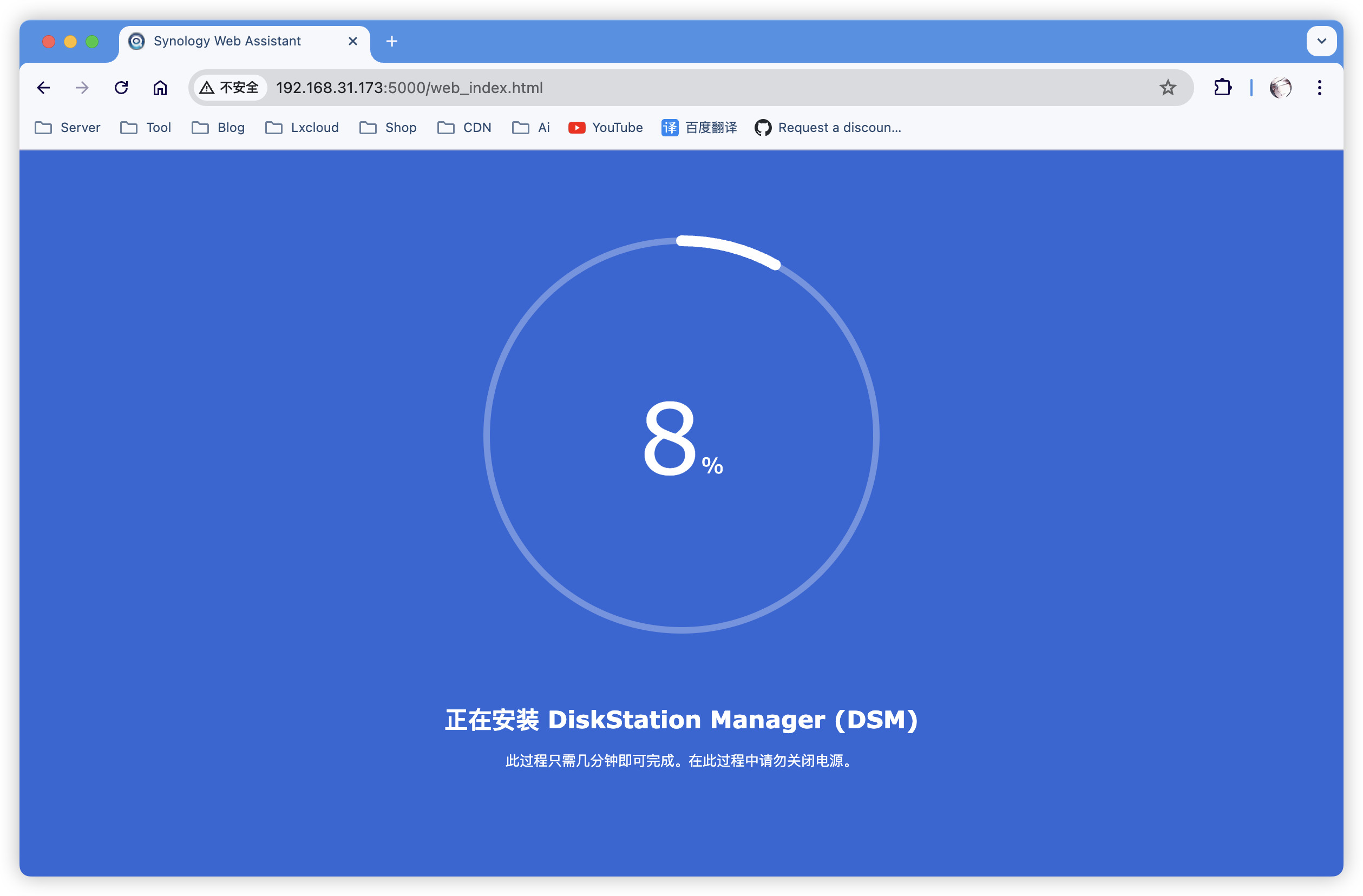
The boot and installation went smoothly.
1720881221.webp
1720881203.webp
Whitening
Perhaps every black Synology user considers "whitening" their system right after getting it—yes, including me. I almost got scammed for 40 yuan on a second-hand marketplace. Many sellers are just reselling what others have shared online. Search online based on your model—you might get a pleasant surprise.
Starting from DSM 7.0, there are only two states: whitened or not—no such thing as "semi-whitened." Currently, the main difference between white and black Synology is the inability to use QuickConnect (QC for short), Synology's remote access tool, which allows NAS access without a public IP. From what I've seen online, its speed isn't impressive.
Once you have the SN and Mac address, you need to replace your current ones. I personally recommend entering the rr bootloader system to make configuration changes—there are plenty of tutorials online, so I won't elaborate here. To save effort, I used Synology's built-in Task Scheduler to mount the boot drive and modify the config file, but accidentally added a file and then mistakenly ran rm -rf on the boot drive's image. After rebooting, without a boot drive, I couldn't access the system. This first tinkering incident made me a bit nervous. I re-flashed the boot image, and upon booting, Synology performed a check—luckily, all my data was intact.
Fortunately, only the boot image was lost. Everyone, please use rm -rf with extreme caution, especially when using high-privilege accounts like root.
After whitening, you can log into your Synology account and use official services (the built-in DDNS resolution is really convenient; I also use DDNS-Go). One important note: never register or log in on the cn site—use the official website with the com suffix.
Public Network Access
Due to the scarcity of public IPv4, some ISPs are reclaiming addresses or offering expensive packages for those who want one. Last week, customer service in my hometown told me dynamic IPv4 was still available. But today, a telecom technician in Chengdu told me dynamic V4 is no longer offered. No big deal—we'll just tinker with V6 instead.
As everyone knows, changing the optical modem from router mode to bridge mode requires admin password. Telecom now uses randomly generated passwords that change every few hours. If you're friendly with the technician, you can add him on WeChat and ask for the password when needed—hahahah. The main task is switching to bridge mode. Whether you have the admin password or not doesn't matter—you can actually contact telecom customer service and have them remotely switch your modem to bridge mode, then use your router for dial-up connection.
1720880531.webp
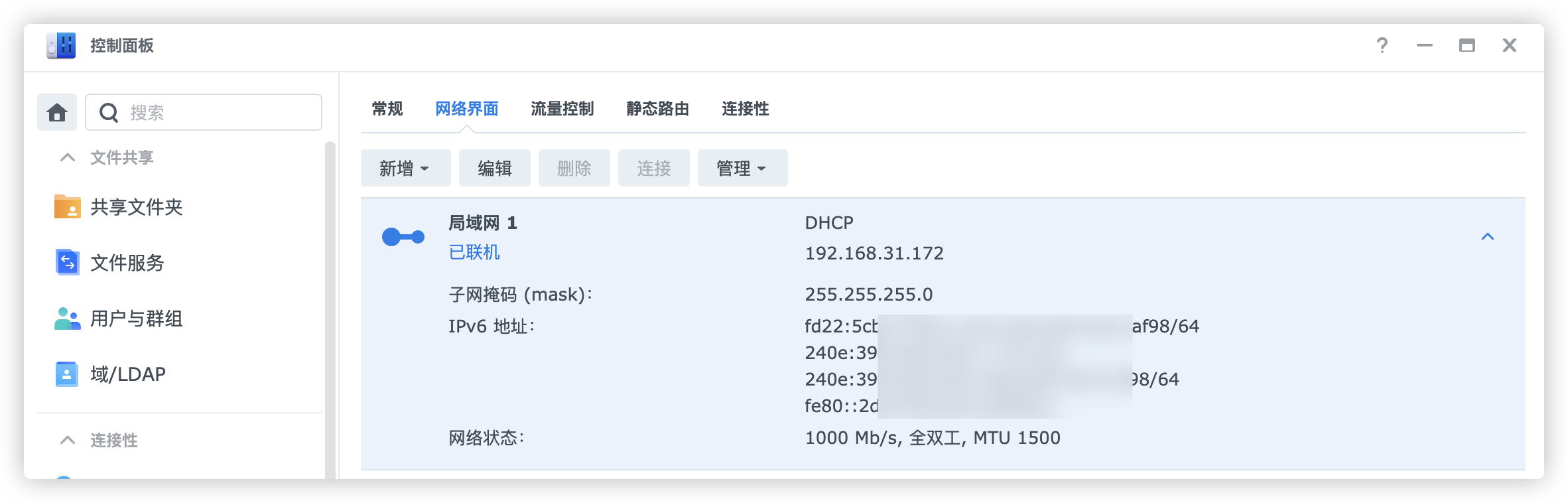
On the NAS network interface, addresses starting with 240e are your public IPv6, while those starting with fe80 are internal IPs that can't be accessed externally—a common pitfall.
iShot_2024-07-13_22.27.49.webp
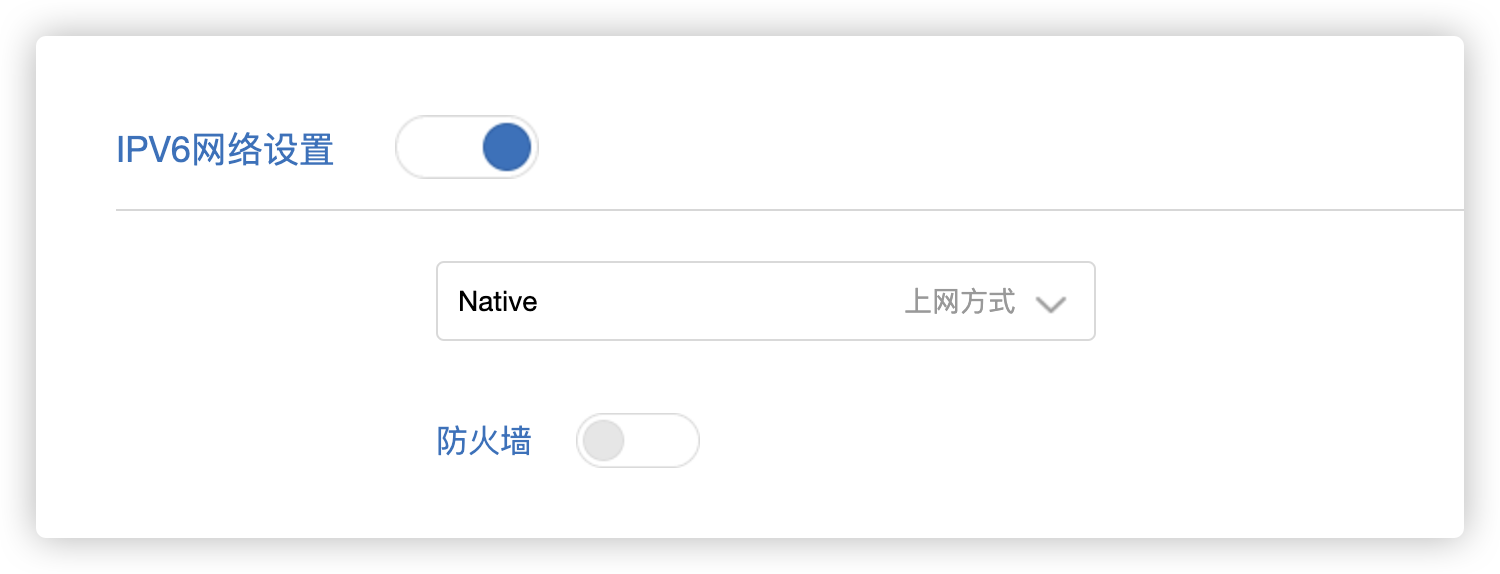
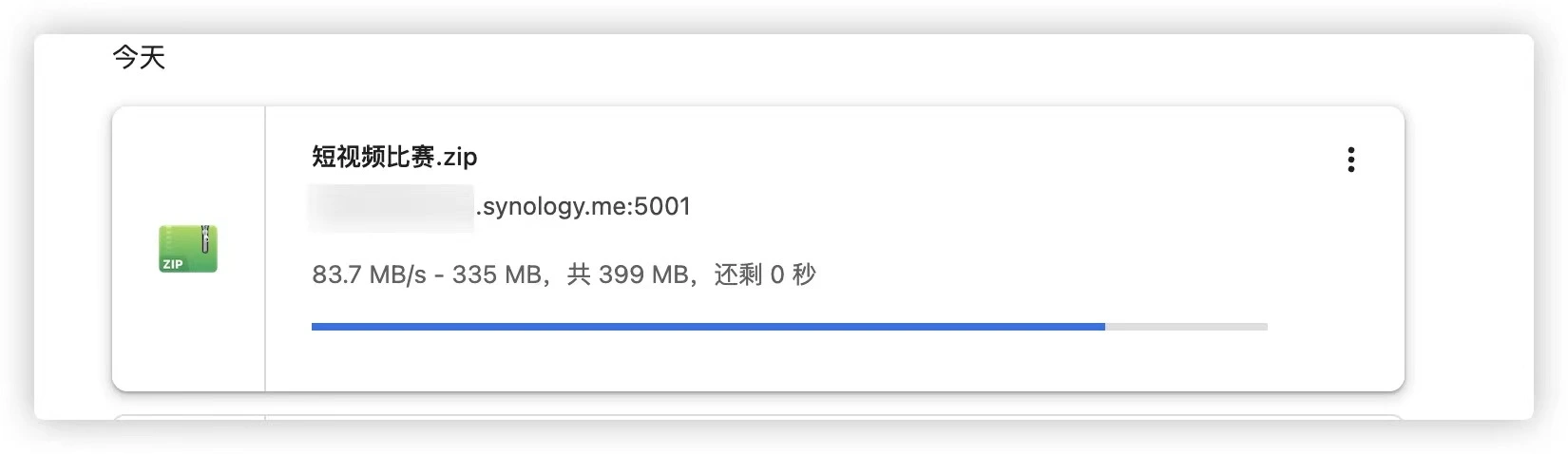
For Xiaomi routers, make sure to change the default IPv6 internet mode from NAT6 to Native and disable the firewall. Earlier, because I didn't switch the mode, my IPv6 resolution only worked internally. Today, just as I was about to give up on public access, I spotted this option in the router admin panel. A quick online search confirmed the need to switch modes—after that, everything worked smoothly. With a 500M broadband connection, I can now achieve near-full speed (public network is amazing!)
1720882102.webp
Final Thoughts
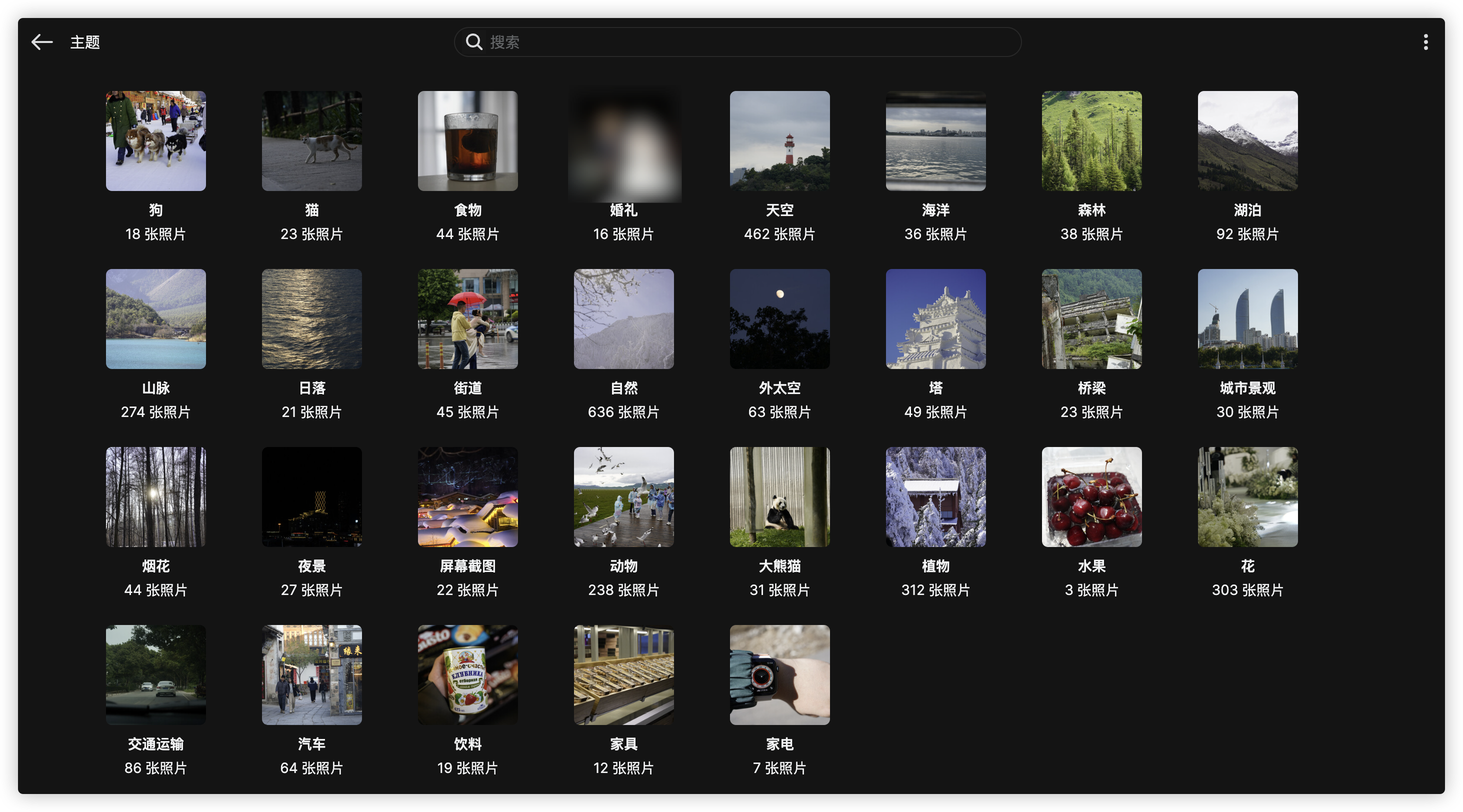
Not sure if I made a mistake somewhere, but I didn't configure port forwarding on my router, nor did I enable DMZ, yet I can directly access applications I deployed on my Synology using the public IP and port. This exposes all my host's ports to the public internet. I asked a few friends, and they said it's normal—but I'm still not entirely clear. One last thing: Synology's built-in Photo Station is fantastic!
1720882749.webp